What Is OpenClaw?
Most AI tools today are built for conversation. They answer questions, write text, and help with research. But when it comes to actually doing tasks on your computer, the process usually stops there. You still have to copy, paste, and execute everything yourself.
OpenClaw takes a different approach. It’s a self-hosted AI agent, meaning you install and run it on your own machine rather than accessing it through a cloud service.
Because it runs locally, OpenClaw can interact directly with your system. With the right configuration, it can read files, execute scripts, organize folders, and automate workflows. In practice, that makes it closer to a digital assistant than a typical chatbot.
Users often rely on OpenClaw to:
- Search and summarize information
- Automate repetitive workflows
- Run command-line scripts
- Connect to tools such as email, messaging apps, or productivity software
In short, the software acts as an AI layer that sits on top of your operating system and carries out tasks when instructed.
Why OpenClaw Stands Out
Several features separate OpenClaw from standard AI chat interfaces.
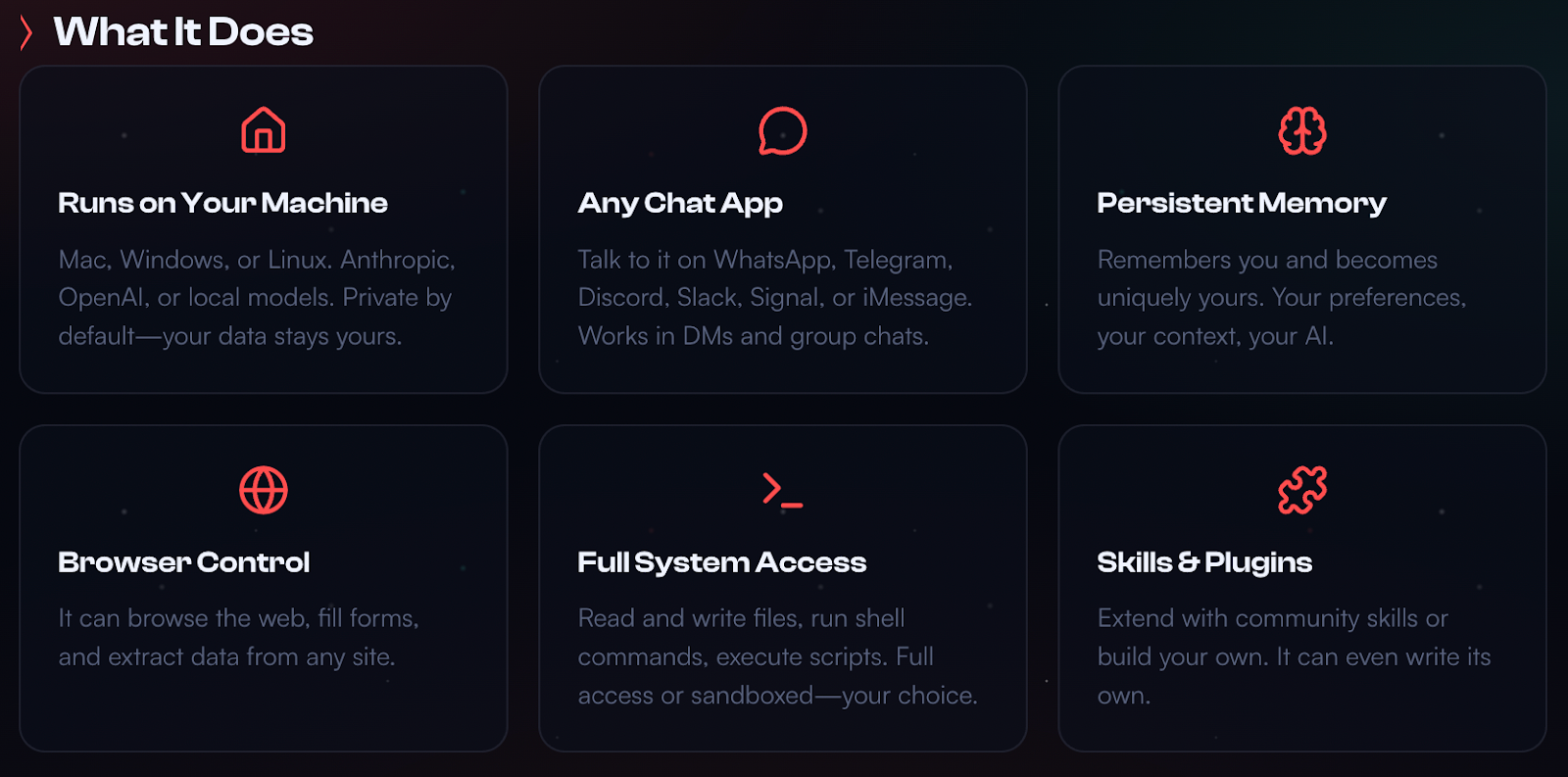
It can perform real system actions.
Most AI assistants only generate text. OpenClaw can run commands, launch tools, and complete multi-step tasks depending on the permissions you grant.
It works inside messaging platforms.
Instead of opening a separate application, users can interact with their AI agent through apps like Telegram or WhatsApp.
It supports long-term memory.
Because the system runs continuously, it can retain context across sessions rather than resetting after each conversation.
It supports extensions called “skills.”
Skills function like plugins that give the agent new capabilities, such as interacting with external APIs or performing specialized tasks.
How to Install OpenClaw
The official installation process requires some technical setup. If you're comfortable using a terminal, the steps are straightforward.
1. Prepare Your System
First, install Homebrew, a popular package manager for macOS and Linux:
/bin/bash -c "$(curl -fsSL https://raw.githubusercontent.com/Homebrew/install/HEAD/install.sh)"
Next, install Node.js version 22 or newer:
brew install node
Check the installation:
node -v
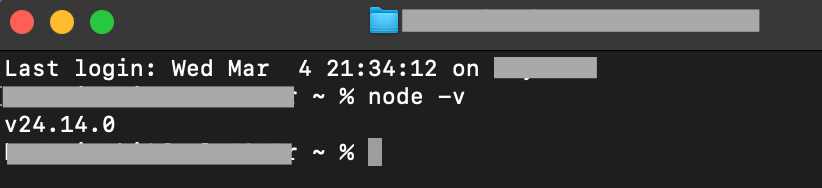
You should see a version number like v24.x.x.
2. Install OpenClaw
Run the installation script based on your operating system.
macOS or Linux
curl -fsSL https://openclaw.ai/install.sh | bash
Windows (PowerShell)
iwr -useb https://openclaw.ai/install.ps1 | iex
If the installer fails with an npm error, install Git and run the command again.
3. Run the Onboarding Setup
Start the configuration wizard:
openclaw onboard --install-daemon
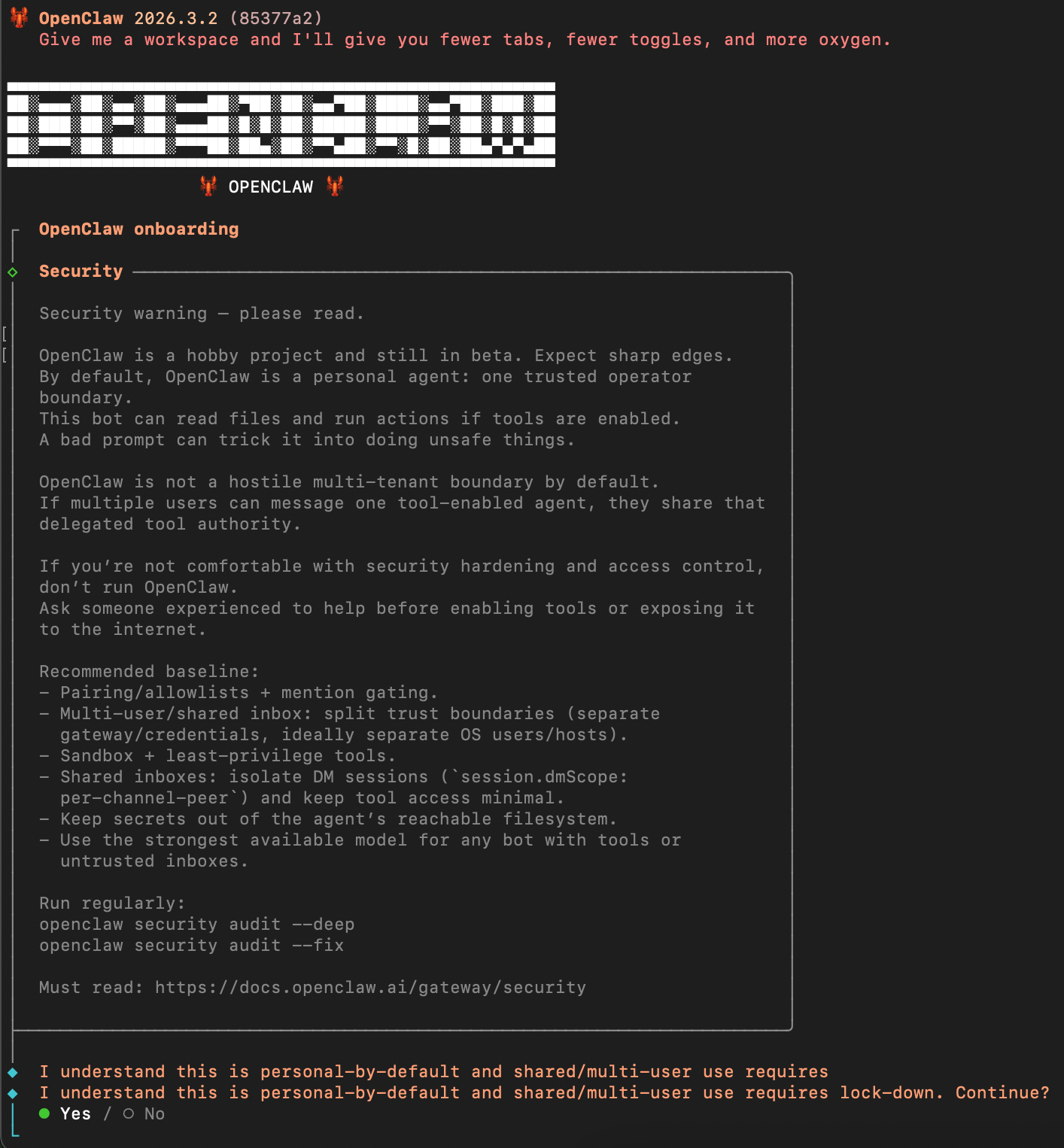
The setup will guide you through:
- Security prompts
- Choosing an AI model (such as OpenAI or Google)
- Entering API keys
- Configuring messaging channels
- Installing optional skills
For beginners, QuickStart mode is usually the easiest option.
4. Confirm the System Is Running
Use the status command:
openclaw gateway status
Then open the control panel:
openclaw dashboard
This launches the dashboard in your browser, where you can start chatting with your agent.
Security Risks You Should Know
Running an AI agent locally gives it powerful access to your system. That also means mistakes in configuration can create real security risks.
Experts generally recommend:
- Keeping the dashboard private (bind it to localhost only)
- Using strong authentication tokens
- Protecting API keys carefully
- Avoiding unverified third-party skills
- Running OpenClaw inside Docker or a virtual machine
Older versions of OpenClaw also contain known vulnerabilities. Make sure your installation is newer than version 2026.1.29, which patched a critical remote-control exploit (CVE-2026-25253).
Regularly running the command below can help identify security issues:
openclaw security audit
Alternatives to OpenClaw
If OpenClaw feels too complex, a few alternatives exist.
NanoClaw offers a lighter version of the same concept with simpler setup.
Claude App from Anthropic is a hosted AI assistant that requires no local installation.
Claude Code focuses specifically on coding workflows rather than full system automation.
Final Thoughts
OpenClaw shows where AI assistants may be heading next. Instead of just generating text, they can operate tools, run commands, and automate parts of your workflow.
But that power comes with responsibility. Setting up OpenClaw correctly—and securely—is essential before letting an AI agent interact with your machine.
If you’re comfortable with terminal tools and local servers, it can become a surprisingly capable digital assistant.